Coupon Recipes
Tip
In compliance with certain exceptions, stores are allowed to contact their customers without explicit consent via email. Read more on legal information
You want to send your customers a coupon or voucher when they sign up for your newsletter
Using the Newsletter Advanced Module, you can customize and automatically send a store coupon to customers that register for the newsletter.
Just follow these steps:
- Navigate to MailBeez Newsletter Module
MailBeez > MailBeez Modules > Newsletter Advanced. - On the right hand side, click on button
Edit Lists. - Create a new list, named e.g.
welcome coupon. Select sourceShop Subscriber. Clickinsertto save the list. - Select the newly created list and click on
edit segmentation- a new window opens. - In segmentation settings, in section
customer, configure the following:- Customer Signup Age Min: 0
- Customer Signup Age Max: 1 (or a higher value if you want to send a coupon to past subscribers)
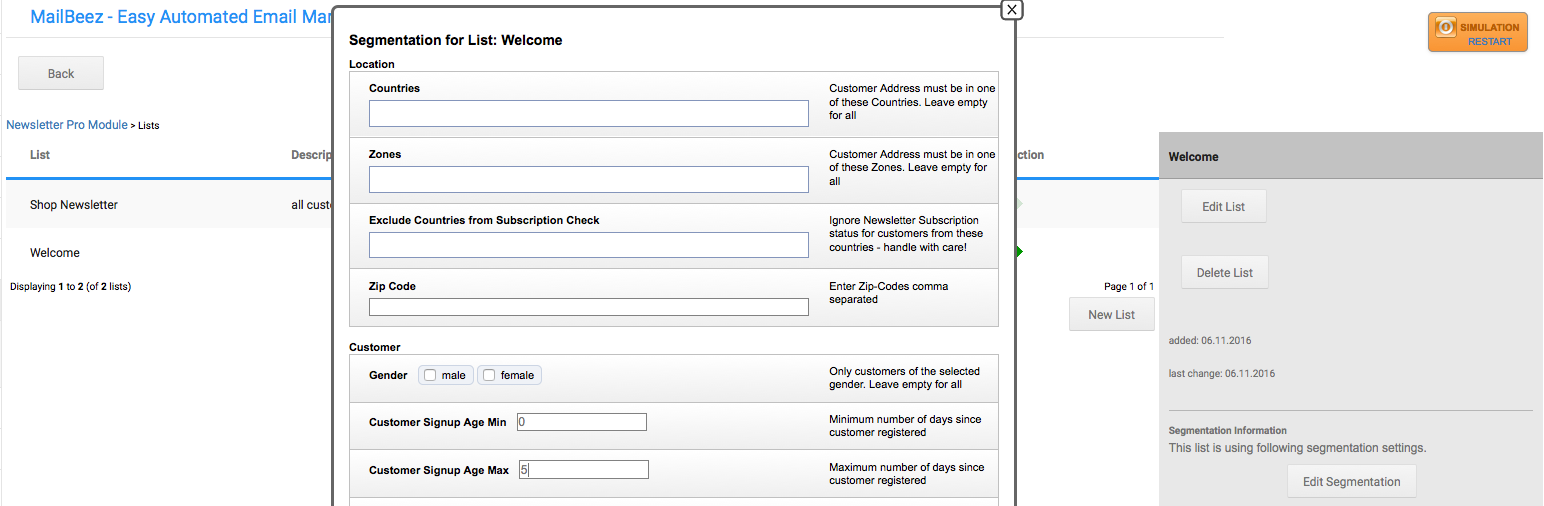
- Scroll down and click
updateto save the segmentation. - Back in the
Edit Listswindow, clickTest Segmentation- you will now see customers matching the segmentation criteria - click on a customer, and the Customer Insight window opens.
You have now created a list of the latest newsletter subscribers.
Note
Please create a template coupon before performing the next steps, check out Tutorial: Creating template coupons - Or run the built-in tour in MailBeez > Tour to get a step-by-step explaination how to create a template-coupon
- Navigate to MailBeez Newsletter Module
MailBeez > MailBeez Modules > Newsletter Advanced. - On the right hand side click on button
Edit Campaigns. - Create a new campaign named e.g.
Welcome newsletter, and as default list, select the previously created listwelcome coupon- clickinsertto save the campaign. - Select the newly created campaign and click on
Edit Campaign items. - Create a new Newsletter - select the coupon template - and click
New newsletter. - Scroll down to
Select Coupon-Template for this Newsletterto select or set-up a new coupon. Clickupdateto save. - Configure the 'active until' date to 01/01/2099 (sets the newsletter to virtually never expire) and click
updateto save. - Now, design the email. Click on the + icon in the editor to add the layout element to display the coupon.
- Note: If your store is set up for several languages, you need to design the other language templates as well.
- Once you are happy with the design and test emails, you can click on
ready for sendingto activate the newsletter.
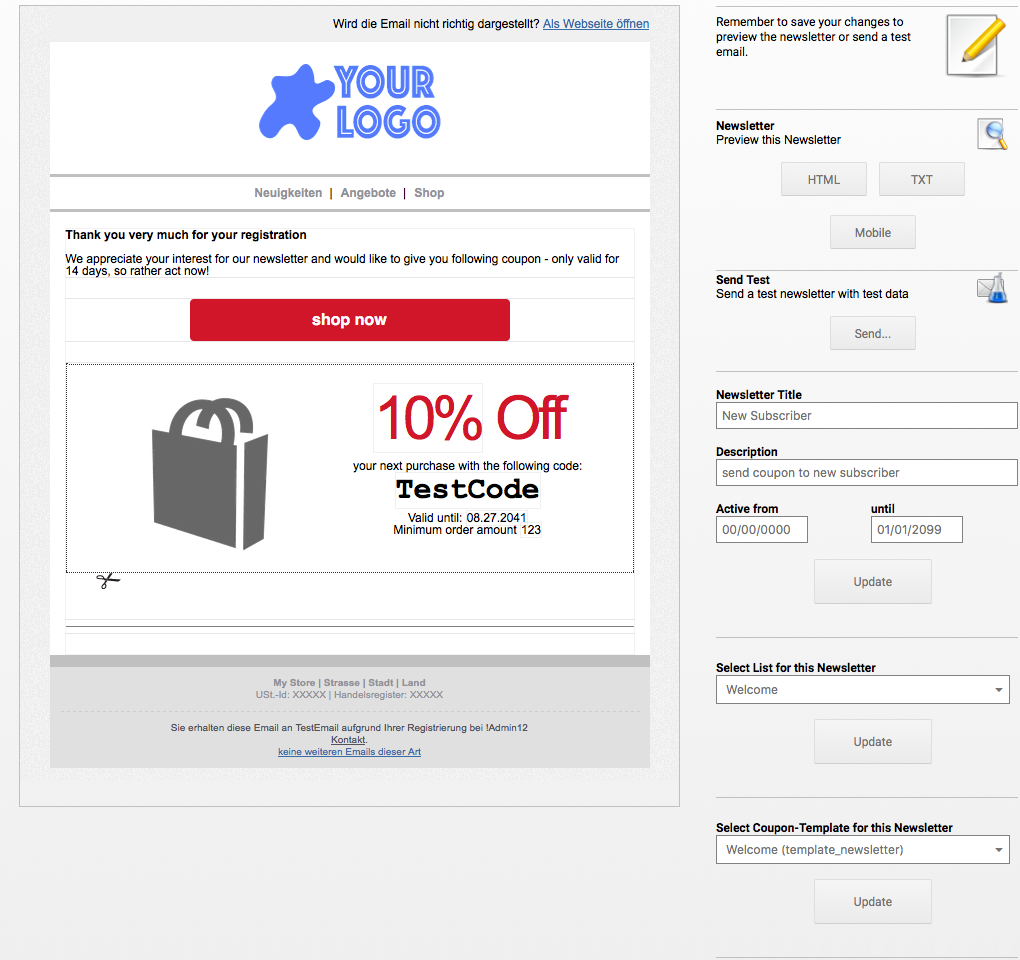
Congratulations! You have now created a Welcome newsletter, which will be sent to all recipients matching your segmentation list the next time the sending process is triggered.
You want to give your customers the option to purchase a store voucher that they can use as a gift.
Using the Newsletter Advanced Module you can customize and automate a configurable voucher that customers can purchase as an individual product. The voucher can be configured with all configuration options available in your store coupon-system - e.g. one time use, limited to products/categories etc. The voucher is unique, but not personalized.
Just follow these steps:
- In your products catalog create a new category
Gift Voucher - In this new category create a product named e.g.
Gift Voucher 25 USD(use relevant currency)- Select a product description, product image etc.
- Set a price matching the value of the voucher
Now you have created a new product, which is a voucher and represents the purchase of a voucher with a value of 25 USD. In the next step we will configure the Newsletter Advanced module to automatically send a voucher after the purchase of this product.
- Navigate to MailBeez Newsletter Module
MailBeez > MailBeez Modules > Newsletter Advanced. - On the right hand side, click on button
Edit Lists. - Create a new list, name it e.g.
gift voucher. Select sourceShop Subscriber. Clickinsertto save the list. - Select the newly created list and click on
edit segmentation- a new window opens. - In the segmentation settings, section
geographicalconfigure the following:- Exclude following countries from newsletter check: (you should enter all relevant countries so the voucher can be sent to a customer regardless if they have subscribed to the newsletter or not).
- In the segmentation settings, in section
products, configure the following:- Products purchased: Select a voucher product you created e.g.
Gift Voucher 25 USD.
- Products purchased: Select a voucher product you created e.g.
- Click
updateto save the segmentation. - Click on
Test Segmentation- you will now see customers matching the segmentation criteria - click on a customer, and the Customer Insight window opens.
You have now created a list which finds all customers who have purchased the product Gift Voucher.
Note
Please create a template coupon before performing the next steps, check out Tutorial: Creating template coupons - Or run the built-in tour in MailBeez > Tour to get a step-by-step explaination how to create a template-coupon
- Navigate to MailBeez Newsletter Module
MailBeez > MailBeez Modules > Newsletter Advanced - On the right hand side click on button
Edit Campaigns - Create a new campaign named e.g.
Gift Voucher Emails, and as default list, select the previously created listgift voucher- clickinsertto save the campaign. - Select the newly created campaign and click on
Edit Campaign items. - Create a new Newsletter - select the coupon template - and click
New newsletter. - Scroll down to
Select Coupon-Template for this Newsletterto select or set-up a new coupon. Clickupdateto save. - Configure the 'active until' date to 01/01/2099 (sets the newsletter to virtually never expire) and click
updateto save. - Now, design the email. Click on the + icon in the editor to add the layout element to display the coupon.
- Note: If your store is set up for several languages, you need to design the other language templates as well.
- Once you are happy with the design and test emails, you can click on
ready for sendingto activate the newsletter.
Congratulations! You have created an email, which will be sent to the customers who have purchase the gift voucher the next time the sending process is triggered.
To offer multiple gift vouchers, just repeat the steps above for each additional gift voucher.
Note
Current limitations:
Only 1 voucher can be sent for each customer, and for each purchase.
Please contact us in case you have additional requirements.